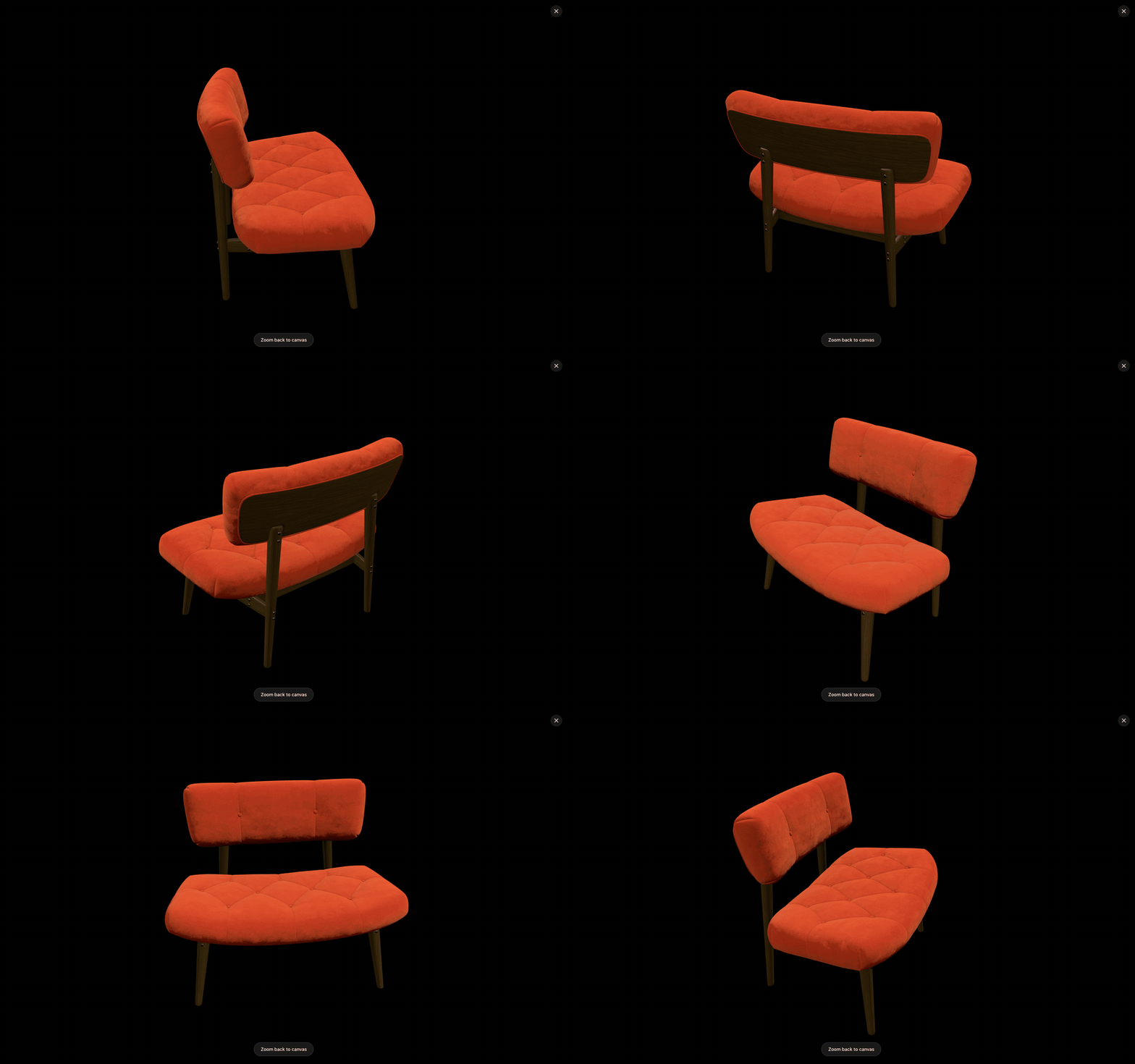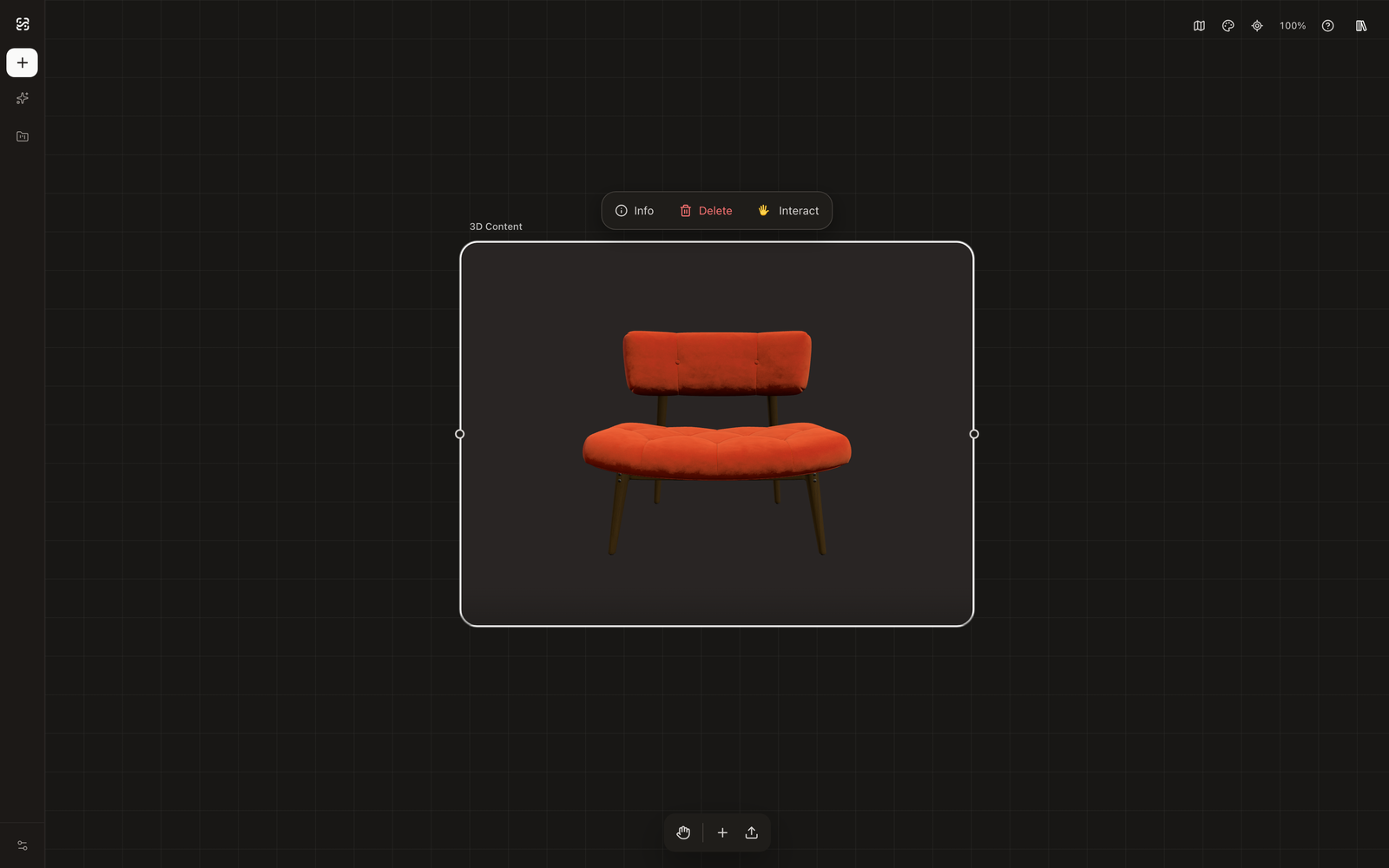
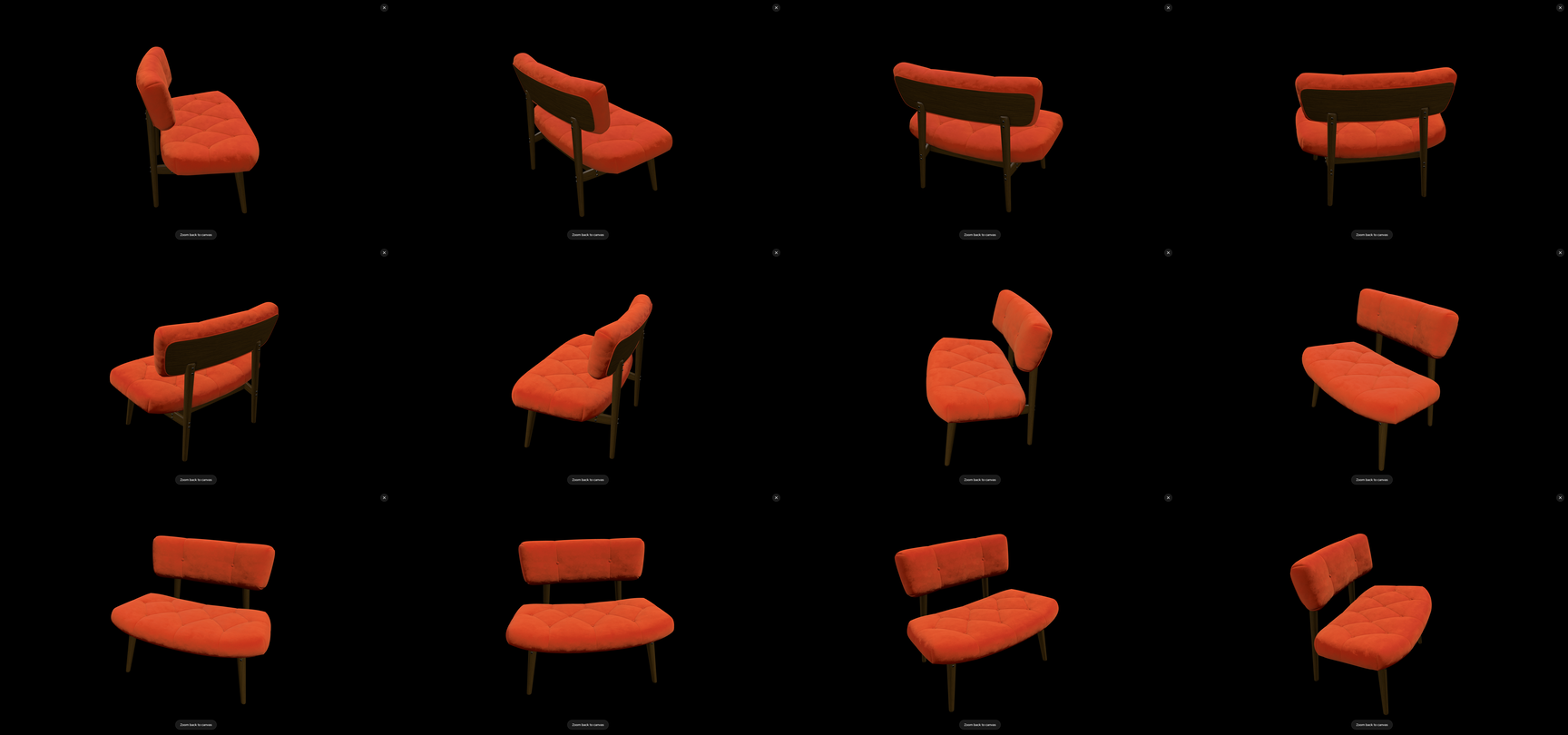
Yes — you can produce a 360° product turntable video without a turntable, a studio, or a single photograph. If your product exists as a 3D model (GLB/glTF), the rotation happens in software: you capture evenly spaced views of the model, generate each frame against the same scene prompt, and assemble the sequence into a looping GIF or MP4. This guide covers the full workflow — including the two consistency rules that make or break a spin video — and the honest trade-offs against shooting a real turntable.
Why 360° product video earns its slot
A spin video answers the question static photos can’t: what does the whole product look like? For listings, that has concrete effects — shoppers rotate instead of wonder, return reasons like “didn’t realize the back looks like that” get rarer, and one asset replaces five to ten angle photos. Marketplaces reward it structurally: Amazon product pages accept 360° image sequences, Shopify storefronts take MP4 spins in the media gallery (check each platform’s current format rules before exporting — they change).
The catch has always been production. A photographed spin needs a motorized turntable, consistent lighting across every stop, and careful syncing — and the whole setup repeats for every SKU and every colorway. Traditional 3D rendering solves the hardware problem but brings its own: a turntable animation in Blender or KeyShot requires learning a lighting-and-render pipeline, and render times multiply across frames. The reference-driven route below is a third path — the rotation comes from the 3D view, the photographic look from an image model, and your cost is measured in API generations rather than studio days.
The three routes, honestly
| Route | What it needs | Wins on | Pays on |
|---|---|---|---|
| Photographed turntable | Physical product, turntable, studio | Real materials, real reflections, production-grade polish | Hardware, studio time, repeat per SKU |
| Traditional 3D render | GLB model, render skills (Blender/KeyShot) | Full control, deterministic output | Learning curve, per-frame render time |
| Reference-driven generation | GLB model, image-model API | Photographic look, no render pipeline, works pre-manufacture | Generation variance between frames — managed by the rules below |
The rest of this guide is the third route. If you’re set up for one of the first two, they remain good routes; the reference approach earns its place when you don’t have the hardware, the render chops, or the manufactured product.
The workflow: rotation without hardware
The foundation is the same as turning a 3D model into product photos — import, frame, capture, generate. A spin video is that workflow repeated at equal angular steps, with two extra disciplines. Step by step:
Step 1: Import and lock the framing
Import the GLB/glTF file into your project (parsed locally, nothing uploads). Then set the camera once and don’t touch it: product centered, fixed height and distance, and — important for spins — generous margin around the product. A frame that barely fits at one angle will crop the product at another, and a cropped frame mid-rotation is the most common way spin sequences get scrapped. Leave at least 15–20% negative space on every side at every angle.
Step 2: Capture evenly spaced views
Rotate the view around the product in equal steps and capture at each stop. The step count is your smoothness budget:
- 8 captures (45° apart) — a choppy “flipbook” spin; fine for internal review, rarely for a listing.
- 12–16 captures (30°/22.5°) — the practical middle; reads clearly as a rotation, keeps generation count sane.
- 24+ captures (15° or less) — smooth platform-grade spin; this is also the range Amazon-style 360 sequences ask for, at 24–80 frames.
Evenness matters as much as count: a sequence with a 20° step followed by a 40° step stutters visibly. If your tool shows angles, use them; eyeballing works too, but check the first full loop before generating anything expensive.
Step 3: Generate every frame from one prompt skeleton
Here is where spin sequences live or die. Generate each frame from its captured reference — that anchors the geometry per frame — but keep one scene prompt, copied verbatim, across the entire sequence. Background, surface, lighting, mood: identical words, every frame, only the reference changing.
This is the catalog-consistency technique from AI product photo prompts that preserve shape and logo, applied N times. The failure it prevents is specific and ugly: if each frame gets a freshly-written prompt, “soft studio white background” and “clean white studio backdrop” produce two slightly different whites, and the difference reads as a flicker when the frames run at speed. One skeleton, N references.
Step 4: Assemble, check the loop, export
Drop the frame sequence into any editor or encoder (FFmpeg, your video editor of choice, or a GIF assembler) at 8–15 fps depending on frame count, and scrub the loop point: the last frame must flow into the first with no jump — with even angular steps this comes free; if it stutters, one capture is off-angle. Export at your platform’s spec; when in doubt, a square 1:1 MP4 under 15 MB and a GIF fallback covers most storefronts (again, verify against the platform’s current docs).
Common mistakes
Reframing between captures. Every zoom or pan mid-sequence scales the product relative to the frame, and the spin becomes a lurch. Lock the framing in step 1 and only rotate.
Fresh prompts per frame. Covered above, worth repeating because it’s the top cause of flicker: one skeleton, verbatim, all frames.
Tight crops. A margin that works head-on may crop at three-quarter angles where the product’s projected width is larger. Check your widest-angle frame before committing to generation.
Judging frames individually. A frame that looks fine alone can still break the sequence — judge a spin by scrubbing the assembled loop, not by reviewing stills. Generate, assemble a rough cut, then decide what to regenerate.
Skipping the consistency check on the product itself. Compare frame 1 and frame N+1 (the same angle, full circle): the product should be pixel-similar. If it drifted, the reference capture changed — recapture that angle rather than prompting harder.
When to use a video model instead
The frame-sequence route is deterministic but generation-heavy. The alternative is image-to-video: give a video model one strong reference (or a few) and an orbit instruction, and let it animate the rotation in a single pass. This can produce smoother motion for less money — and its risk is exactly what you’d expect: the video model can re-draw your product during the motion, especially on fine details like logos. Test with one clip per product before committing a catalog, keep an angle-true reference in frame, and treat the deterministic sequence as your fallback when the model’s spin drifts. Either way, the starting point is the same: a real capture of your model, which is what keeps the product your product.
Frequently asked questions
The compressed version: 12–24 evenly spaced captures cover most needs, one prompt skeleton across all frames kills the flicker, a shared 3D reference per frame is what keeps the shape stable through the loop, and video models are a cheaper-but-riskier alternative to test per product. The expandable answers below cover each.