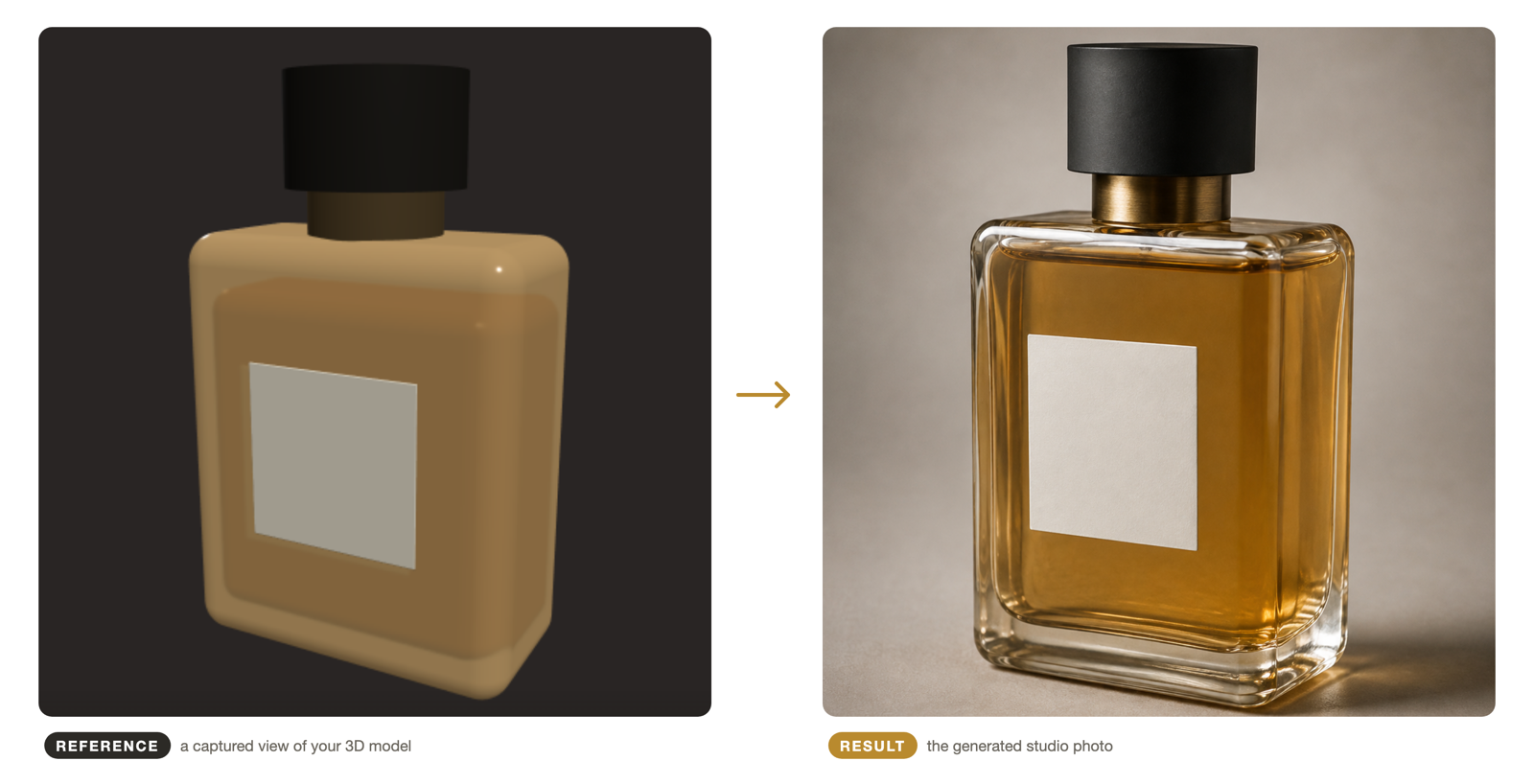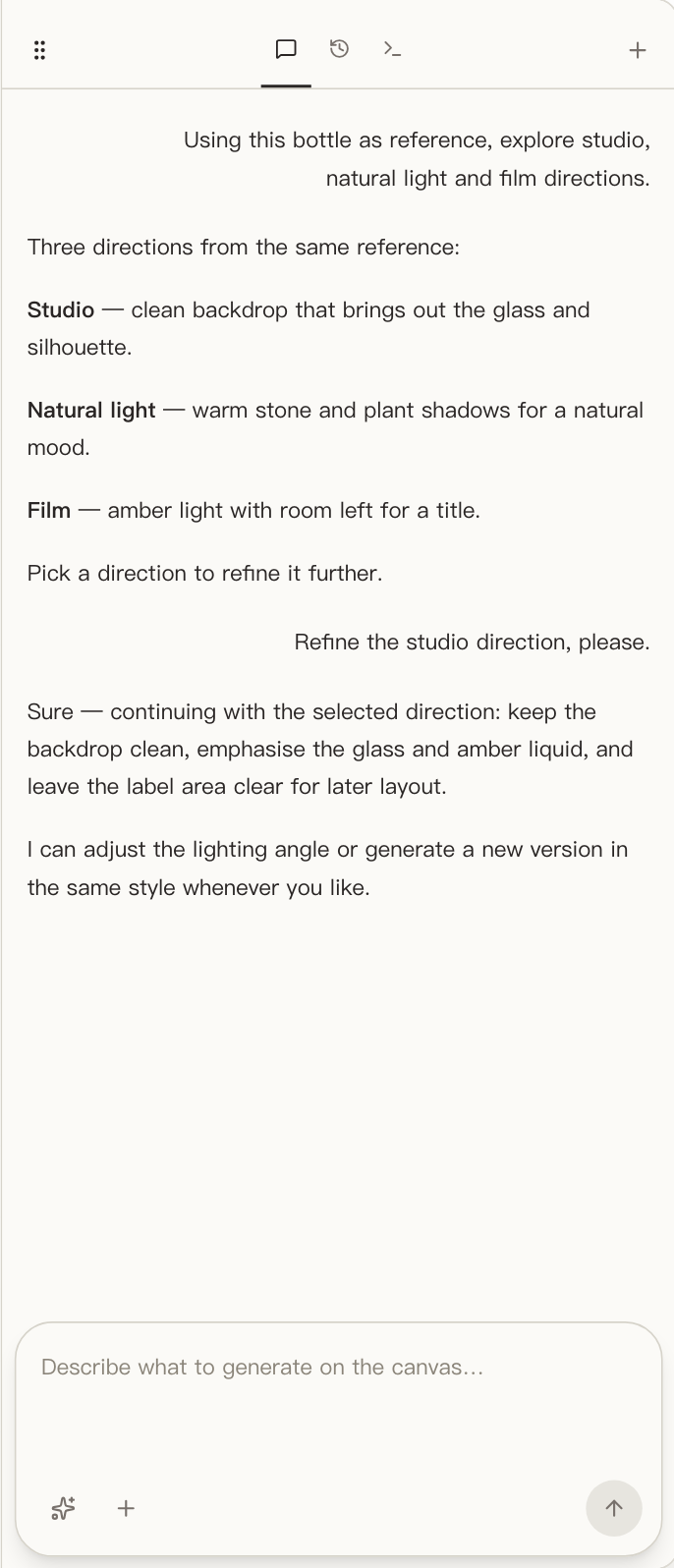
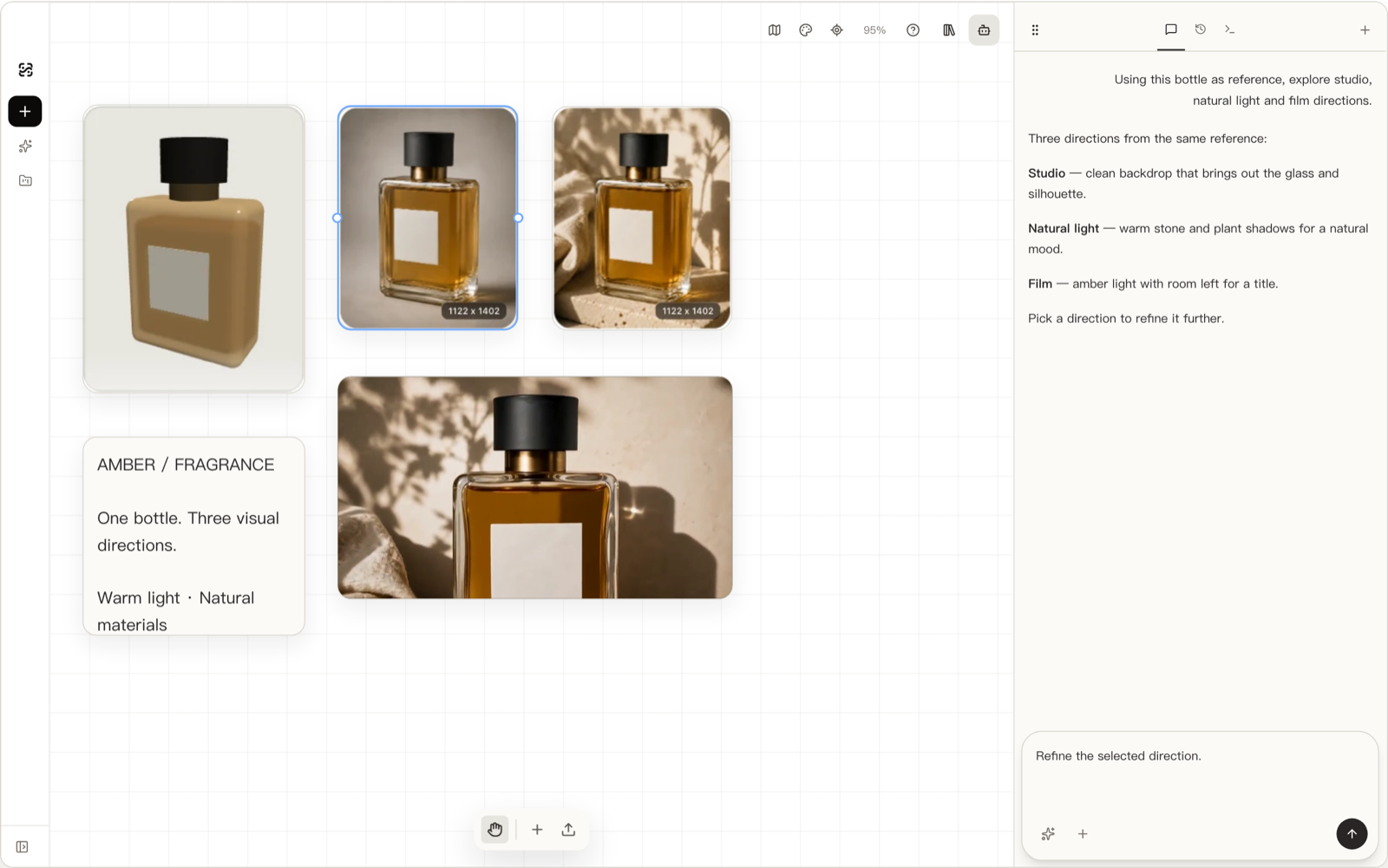
Yes — you can turn a 3D model into product photos without a studio: import the model as a GLB or glTF file, frame the angles you want in an interactive 3D view, capture those views, and use them as references for image generation. Because the generator works from actual captures of your model rather than a text description alone, the photos hold your product’s real proportions. This guide walks through the full workflow in shotshot.ai, from a raw GLB file to an iterated, listing-ready shot.
Why not just prompt a text-to-image tool?
The shape-drift problem
Ask a text-only image generator for “a matte-black wireless earbud case with a USB-C port on the front” and you will get a matte-black earbud case — but almost never your earbud case. The port is a few millimeters too wide, the lid seam runs through the logo, the corner radius is wrong. Text-to-image models are trained to produce plausible objects, not your object, and the more specific your product is, the more visible the drift becomes. Regenerate and you get a different wrong shape, not a closer one.
For a product photo, the shape is the product. A well-lit picture of a lookalike is not an image you can put on a listing page, because it misdescribes what ships in the box.
Why a photo shoot doesn’t scale either
The traditional fix is photography, and it works — at a cost that scales badly. Every new SKU, every color variant, and every additional angle means studio time, lighting setup, retouching, and shipping samples around. Long-tail catalogs tend to drift toward whatever images were affordable to produce at launch, which is how you end up with one hero photo and a dozen missing angles years into a product’s life.
Both problems have the same root: the image is being produced away from the source of truth. For prompt-driven images the source of truth is missing entirely; for studio shots it sits in a warehouse while the product is photographed once and described everywhere else. A 3D model is that source of truth in a form a computer can work with.
The idea: let the 3D view do the geometry
A GLB or glTF file contains your product’s exact geometry — every edge, port, and proportion, already decided. That lets you split the work cleanly:
- The 3D view owns geometry and composition. You orbit, pan, and zoom until the frame looks like the photo you want. The product cannot drift, because the view is the product.
- The image model owns surfaces and scene. Materials, background, lighting mood, props — the things a real-time 3D viewport renders poorly and a photo-real generator renders well.
The captured view is the bridge between the two. When you capture a view in shotshot.ai, you get an image of your model from that exact angle. Feeding that capture to an image model as a reference gives the generator something no prompt can: ground truth about what it is drawing. The generator no longer has to guess the shape, so your prompt only has to describe everything around the shape.
This is also why the workflow is controllable in a way prompt-only generation is not. Composition is decided before generation starts — in the 3D view, where you have exact control — instead of negotiated with the model through prompt revisions afterward. If a shot comes back wrong, you can usually tell immediately whether the problem is geometry (fix the view, recapture) or scene (fix the prompt, regenerate).
The workflow: from GLB file to finished photo
Here is the full loop as you would run it in shotshot.ai. The numbered summary at the end of this page mirrors these steps.
Step 1: Import your GLB or glTF file
Open your project and import the model. shotshot.ai reads GLB and glTF — the formats exported by Blender, most CAD tools, and most game engines. The file is parsed locally, and the project it lands in is stored on your device, so a proprietary model never has to leave your machine just to become a reference.
Import is deliberately boring: no scene setup, no material authoring, no cameras to place. You are not building a render; you are loading ground truth to frame shots against.
Step 2: Adjust the view until the composition is right
Drag to orbit, scroll to zoom, and pan to recenter — the same gestures as any 3D viewer. Frame the product the way a product photographer would:
- Start with a three-quarter hero angle, slightly above center height. It reads as “product photo” more than any other angle.
- Leave negative space. A frame packed edge-to-edge leaves the generator nowhere to put a background, which pushes it toward inventing content at the borders.
- Match the angle to where the image will live. A marketplace thumbnail wants a straight-on front; a social post can take a lower, more dramatic view.
You are doing real art direction here — this step decides the composition of the final photo, which is exactly the control prompt-only tools take away from you.
Step 3: Capture reference views from multiple angles
When the frame looks right, capture it. Then move the view and capture again. For a typical listing, three to five views cover it: hero, straight-on front, a detail view of anything with a logo or port, and the back if customers will see it.
Multiple captures earn their keep in two ways. First, each generation is only as informed as its reference — a back-view shot generated from a front-view reference has to invent the back of your product, while a back-view capture anchors it. Second, capturing all angles in one sitting keeps a listing visually consistent, because every image descends from the same model and the same framing decisions.
Step 4: Generate an image from a reference view
Pick a captured view, write a prompt for the scene, and generate. The division of labor from the idea above applies directly to prompting: the reference already carries the geometry, so the prompt should describe everything the reference does not — background, surface the product stands on, lighting mood, atmosphere. “Studio white background, soft shadow under the case, subtle top-left highlight” is a scene prompt. Repeating the product’s dimensions in it just fights the reference.
shotshot.ai generates through the image model API you configure in its settings — bring the model you already have access to, and swap it without changing your workflow. On the privacy side, the rule is simple: Projects and assets stay on your device by default. When you generate with a cloud model, the prompt and reference views are sent to the model service you configure. If your product imagery is sensitive, that sentence is the whole threat model: a local project stays local, and generation talks only to the endpoint you chose.
Step 5: Compare and iterate on the canvas
Generated candidates land on the canvas next to the reference view and next to each other. This is where the workflow closes its loop. Compare candidates against the reference for geometry fidelity and against each other for scene quality, keep the closest one, and refine.
There are exactly two iteration moves, and knowing which one a shot needs is most of the skill:
- Refine the prompt when the geometry is right but the scene is wrong — harsh lighting, busy background, wrong mood.
- Refine the reference when the geometry is wrong — nudge the 3D view, zoom in on the detail that bothered you, recapture, and generate again. Small composition fixes are cheap here precisely because you are turning a dial in 3D instead of describing the dial in words.
Either way, the previous candidates stay on the canvas for comparison, so “better” is a judgment against real alternatives rather than a memory of one.
Common mistakes (and how to avoid them)
Framing too tight before capturing. A reference with no margin forces the generator to extend the scene outward, and extensions are where hallucinations live. Pull the view back a little; you can always crop later.
Prompting the shape instead of the scene. If your prompt re-describes the geometry, it competes with the reference. Describe the world around the product and let the capture carry the product.
Generating every angle from one reference. The back of the product does not exist in a front-view capture. Capture each angle you intend to publish — that is what the multi-view step is for.
Judging from a single candidate. Image models vary between runs. Generate a few candidates of the same reference and pick on the canvas; treating one result as the verdict wastes the comparison step.
Skipping detail captures. Logos, ports, and buttons are small in a full-product frame, which gives the generator little to anchor on. For detail-heavy shots, zoom the 3D view in until the feature fills the frame and capture that as its own reference.
Treating the project as disposable. Projects and their captured references are stored locally, which makes the whole workflow reproducible: when the product revs to a new version, re-import, re-frame, and regenerate against the same scene prompts instead of starting from scratch.
Frequently asked questions
The short version of everything above: the workflow asks for art-direction judgment, not 3D or photography training; your files stay on your machine unless you send a generation to a cloud model; and the photo matches your product only as closely as the references you capture. The expandable answers below cover each of these.