



To view a GLB file online, drop it into a browser-based glTF viewer: within seconds you get an orbitable 3D view of the model — no install, and with the common viewers no upload either. “Render” is the word doing double duty in that search, because it covers two different jobs. One job is seeing what a model looks like: geometry, materials, scale. The other is producing imagery of a product good enough to publish. Free online tools do the first job well; the second takes a different workflow, and this page covers both honestly — the viewing options compared, then the step from viewing to finished renders.
Three ways to view a GLB online
A dedicated glTF viewer
Don McCurdy’s glTF-Viewer is the tool most 3D people mean by “GLB viewer.” Its actual purpose is inspecting and debugging glTF and GLB files: drag a model in, orbit it, toggle wireframe and material modes, and swap environment lighting to see how the materials behave under different light. The page reads your file in the browser — nothing uploads to a server. As of 2026-09 it is free and open source. For “is this the right model, is it textured correctly,” it is exactly the right tool.
A hosting platform
Sketchfab turns an uploaded GLB into a shareable page with a polished built-in player — camera animation, annotations, lighting presets. Its purpose is publishing and showcasing models, which makes it the choice when the model itself is the deliverable you want stakeholders or customers to interact with. The trade-offs are equally real: the model sits on someone else’s servers, free uploads lean toward public models, and images come out as screenshots of the player. It is freemium as of 2026-09, so check the current terms before relying on a privacy tier.
A converter’s preview pane
A family of conversion-first sites — imagetostl, Convert3D, and similar — accept a GLB, show a small preview, and hand you a converted file. The preview exists to confirm the conversion worked, not to view the model well: the window is small, camera control is minimal, and screenshot quality is limited. Pricing is typically freemium with file-size or daily limits (as of 2026-09), and converting means uploading the model to the service’s servers.
Which GLB viewer fits the job
| Tool | What it is built for | Cost (as of 2026-09) | What you get |
|---|---|---|---|
| glTF-Viewer (donmccurdy) | Inspecting and debugging glTF/GLB files in the browser | Free, open source | Clean orbit view, material and environment modes; the file is read locally, not uploaded |
| Sketchfab | Hosting and showcasing models with a built-in player | Freemium | Shareable page and embeddable player; the model uploads to their servers, images via player screenshots |
| imagetostl / Convert3D-style sites | Format conversion (GLB ↔ glTF, OBJ → GLB, …) | Freemium with file limits | A conversion-check pane — small window, minimal camera control, limited screenshots |
| Shotshot (desktop) | Turning a GLB into product images and videos | Free download; generation runs through the image model you configure | Frame and capture model views, generate scenes from them, compare candidates on a canvas |
The honest pattern across the online options: each is competent at its actual job — inspecting, hosting, converting — and none of them is trying to produce a product photo. Knowing that saves you from the common dead end of screenshotting a viewer and wondering why the result does not look like a listing image.
From viewing to rendering
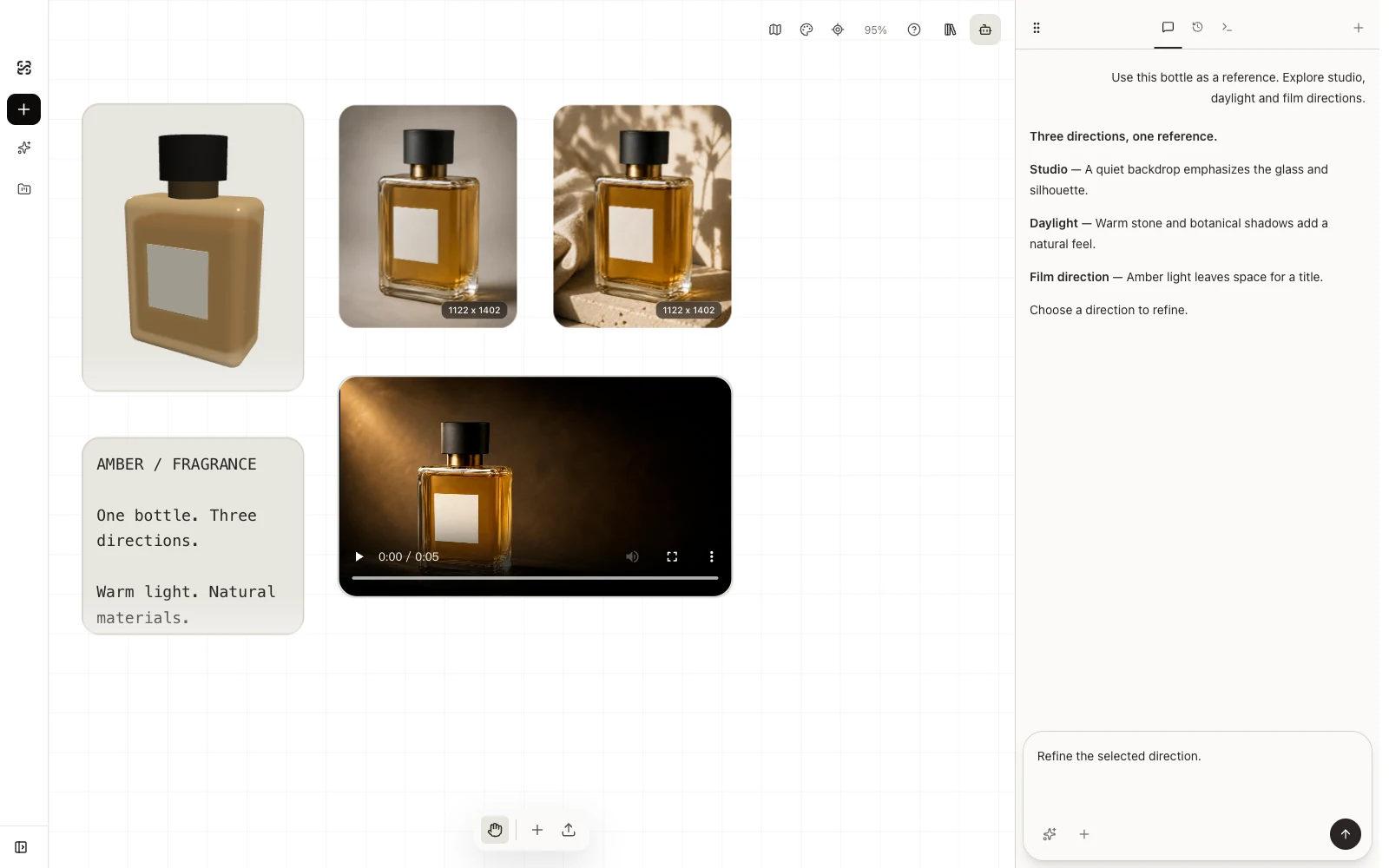
If the GLB is a product model and the goal is imagery, rendering adds the things a viewer viewport does not have: a scene to stand in, light shaped for the product, framing you can repeat across a set. That is the gap Shotshot works in, and the interactive demo on this page is its real workspace — not a video. You start from a 3D reference view, describe the scene you want, and generate product images and videos with the model you configure, comparing candidates on one canvas.
The workflow in short: import the GLB — the file is read locally into a project stored on your device — orbit and frame the view you want, capture it as a reference, then prompt for the scene: background, surface, lighting mood. The privacy boundary is explicit: Projects and assets stay on your device by default. When you generate with a cloud model, the prompt and reference views are sent to the model service you configure. Compare that with the online tools above, where the model file itself uploads as the price of admission.
The difference from a viewer screenshot is where the work happens. A screenshot records the model exactly as authored, under whatever generic environment the viewport provides — a faithful technical record. A generated render keeps the geometry from your captured view and lets the prompt describe surfaces, staging, and light, which is usually the difference between “the model we had” and “the shot the listing needs.” When consistency across a product line matters, repeatable captured views beat one-off window grabs, too.
Frequently asked questions
The short version: a free browser viewer shows you the model in seconds without an upload, hosting platforms trade an upload for shareability, and viewer screenshots are records — not product photos. The answers below cover the details.